A custody visit has more steps than most bookings. Before a family can sit in a visiting room, the facility has to know who they are, confirm that the person in custody may receive visits, approve the relationship, keep the visit inside the facility's limits, admit the right people at the desk, and keep a record of every decision. This guide follows one custody visit through Waitlist App's Visitation mode, step by step, as the mode works today. Visitation is part of Waitlist App Enterprise.
The worked example is Malaysia. The screens come from our demo facility, Demo Correctional Facility, Selangor. Every person in it is made up, and every ID image is a grey sample marked "SAMPLE - NOT A REAL DOCUMENT". Nothing in the mode is specific to Malaysia: a facility anywhere sets its own rules, as described below.
Who does what
Visitors use a page on their phone. Facility staff use the console. Staff are team members with one of four visitation roles, and the account owner can do everything.
| Role | What they do |
|---|---|
| Visitor | Applies to visit a person in custody, uploads an ID, adds the children who come along, books visits within the facility's limits, shows the pass QR at the desk, cancels a visit. |
| Reviewer | Opens an application and the ID (the view is logged), marks the ID Verify, Not valid or Ask again, then approves, refuses with a reason, or sends the application back. |
| Front desk | Finds the visitor by pass QR or by name from today's list, compares the person with the verified ID photo, admits them with their children, checks people out. |
| Supervisor | Suspends or reinstates one person's visits, locks a housing unit down and lifts it, approves or declines requested visits, does the end-of-day close-out. |
| Admin | Applies the setup pack, imports the people in custody, gives staff their roles, reads the audit log. |
1. Facility setup: the corrections setup pack
A facility's behaviour is set in its setup pack, a versioned set of settings we apply for the facility. The code holds no facility rules. The pack sets:
- The facility: its time zone, the ID types it accepts, and the age under which a person counts as a child (18 in the Malaysia profile).
- Zones: housing units, where people in custody live and where lockdowns apply, and visiting areas, where visitors are admitted, with their capacity.
- Visiting rooms and visit types: contact or non-contact, capacity, weekly hours, how far ahead a visit may be booked, and whether a booking needs staff approval.
- Visit caps and party limits: how many visits each person in custody may receive in a period (enforced, or warn only), the largest party, the most adults, the most children, and whether children need an adult.
- The approval: the application form's questions, how long the ID check may take, how many reviewers must sign (one to three), and how long an approval lasts.
- Decision tables:
visitor-screening,visit-booking-guardandvisitor-relationship-kind. They are versioned, and a person at the facility publishes each version. - Disclosure: what the visitor is told. Whether the person they name is matched, which of that person's details are shown, which refusal reasons are shown. Everything defaults to nothing.
- ID image retention: by default a document's images are kept 365 days and then blanked. A facility can opt in to earlier removal when a check is rejected, sent back or expires. The check's record is never deleted; only the images are blanked.
- Residency and AI region: where the facility operates and who it serves, which sets its data protection posture, and where AI may process data: in the country, in a region group, or anywhere, with the transfer basis.
- Messaging: the channel for sign-in codes and notices: WhatsApp, or SMS for facilities in the US and Canada.
Re-applying a pack changes only what differs. Change one visit cap and only that rule changes, as a new version.
The words the pack uses
The pack's terms come from one corrections vocabulary, so every screen and every report uses the same nouns. A person in custody is the person a prison, remand or detention facility holds and a visitor comes to see. A custody visit is one booked meeting between a person in custody and their approved visitors, at a set time, in a visiting room, of one kind. A visiting privilege is the person in custody's current right to receive social visits: active, suspended or withdrawn. A visitor approval is the facility's decision that a named visitor may visit a named person in custody for a set period. A lockdown is a hold on a housing unit that stops visits until it is lifted.
The Malaysia reference rule set
Facilities start from a reference rule set and own every rule they publish. The Malaysia profile cites its source for each rule:
| Rule | Source |
|---|---|
| A withdrawn privilege stops social visits, not legal or official ones | Prison Regulations 2000, regs 88, 101, 105 |
| Legal counsel, consular officers, clergy and caseworkers go to review with their credentials | Regs 101, 105, 149 |
| Anyone not a relative or friend is referred to staff | Reg 86 ("special authority") |
| At most five visitors at one time | Reg 93; Jabatan Penjara Malaysia visiting guide |
| Book at most 3 days ahead | Jabatan Penjara Malaysia visiting guide |
| A data protection officer on record before any ID is stored | Personal Data Protection Act 2010 |
Two rules in the Malaysia profile are available on request for booking. One leaves children under 10 out of the five, as the visiting guide does; today every child counts toward the party. The other sets visit frequency by progressive stage (reg 87(3)); today the facility sets one cap per person in custody per period.
2. The visitor applies on a phone
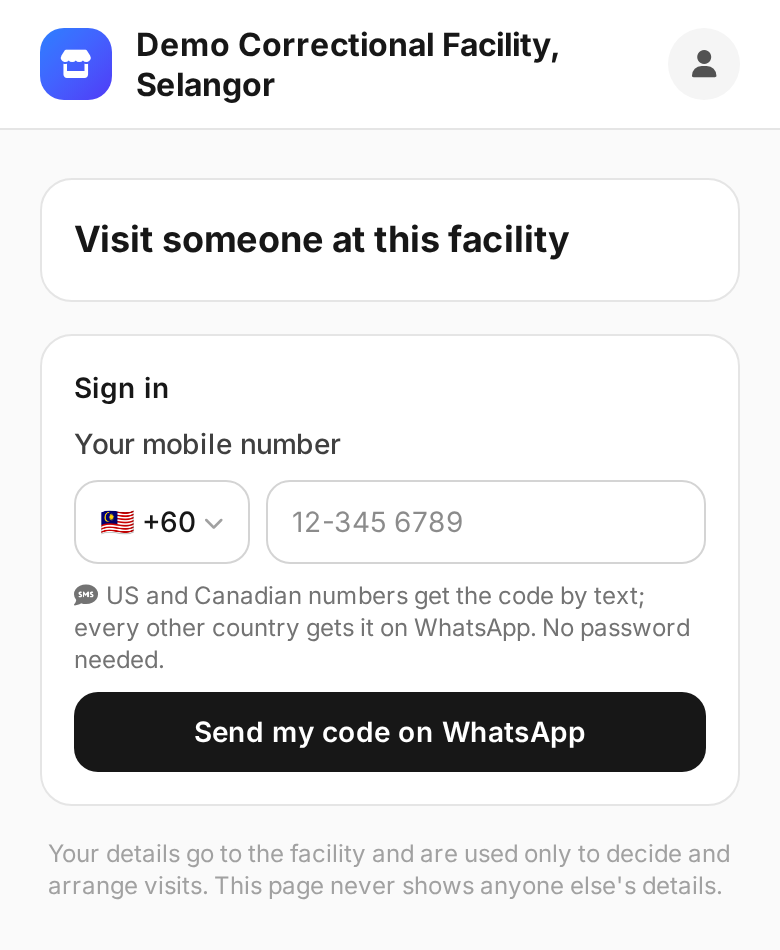
The visitor opens the facility's page. There is no app to install and no password. They sign in with a code sent to their phone: by WhatsApp in Malaysia and every country outside the US and Canada, and by SMS in the US and Canada. The country picker offers the facility's own countries, with the operating country first. Sign-in is by phone code only, so a visitor whose number the facility cannot message cannot sign in.
The page is available in ten languages, including Bahasa Melayu, Chinese and Tamil. The application asks for:
- who they visit, by the person in custody's facility number, and how they are related;
- any other adults coming;
- the children coming along, with name and date of birth;
- their own ID: type, number, photos of the front and back, and a photo of their face.
The page sends the photos straight to the identity check service and keeps none of them. The person named is looked up in the facility's directory on the server. The facility's disclosure setting decides what the visitor learns: nothing, a match after they send (with initials only, as in the demo), or a search before they apply.
3. ID review
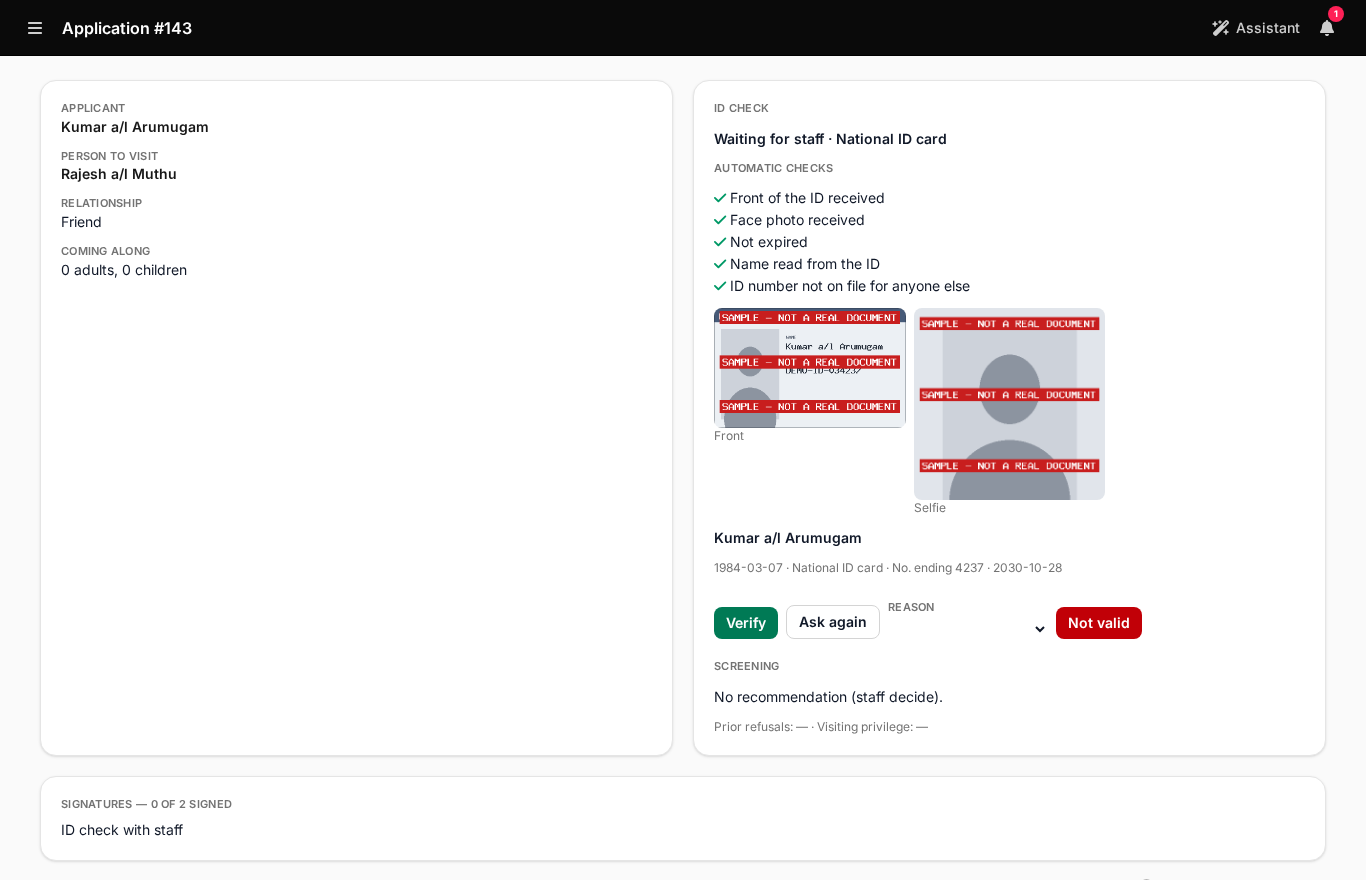
The application waits in the reviewers' Approvals queue. A reviewer opens it and sees the automatic checks:
- front of the ID received;
- face photo received;
- not expired;
- name read from the ID;
- ID number not on file for anyone else.
Opening the images is recorded with the reviewer's name, and the images are never stored in the app. The reviewer marks the ID Verify, Not valid (with a reason) or Ask again. Not valid and Ask again send the visitor back to upload a new ID.
4. Screening
Once the ID is verified, Waitlist App checks whether the person in custody has an active visiting privilege. The facility's visitor-screening table then recommends clear, refer or decline, and the reviewer sees the rule it used. The visitor-relationship-kind table picks the relationship to record: approved visitor, legal counsel or caseworker.
If a service cannot be reached during an approval, the application is never refused automatically. When the privilege check is down, the reviewer decides, and the screen says the privilege could not be checked automatically. When any other step is down, the application waits in the reviewers' queue. A real "no" from a check still refuses.
5. Two-person approval
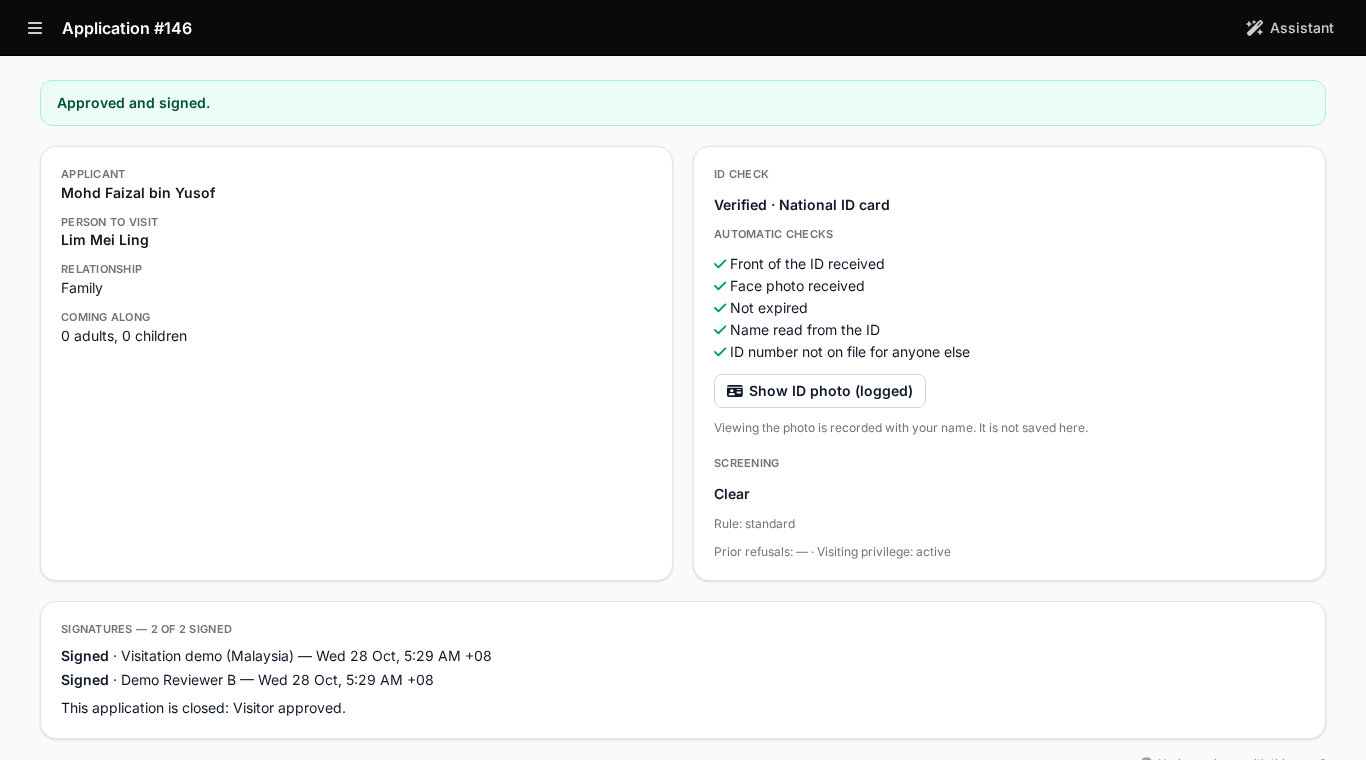
A reviewer approves, refuses with a reason code, or sends the application back for correction. When the facility requires two reviews, a second, different reviewer must sign. If the first reviewer tries to sign again, the system refuses: "You already signed this approval. A second reviewer must sign." Each signature is recorded as the staff member who made it.
The approval records the relationship between the visitor and the person in custody, and issues a visitor pass for the facility's visiting areas, valid for the period the facility set. The visitor is told on their phone.
6. Booking within the visit allowance
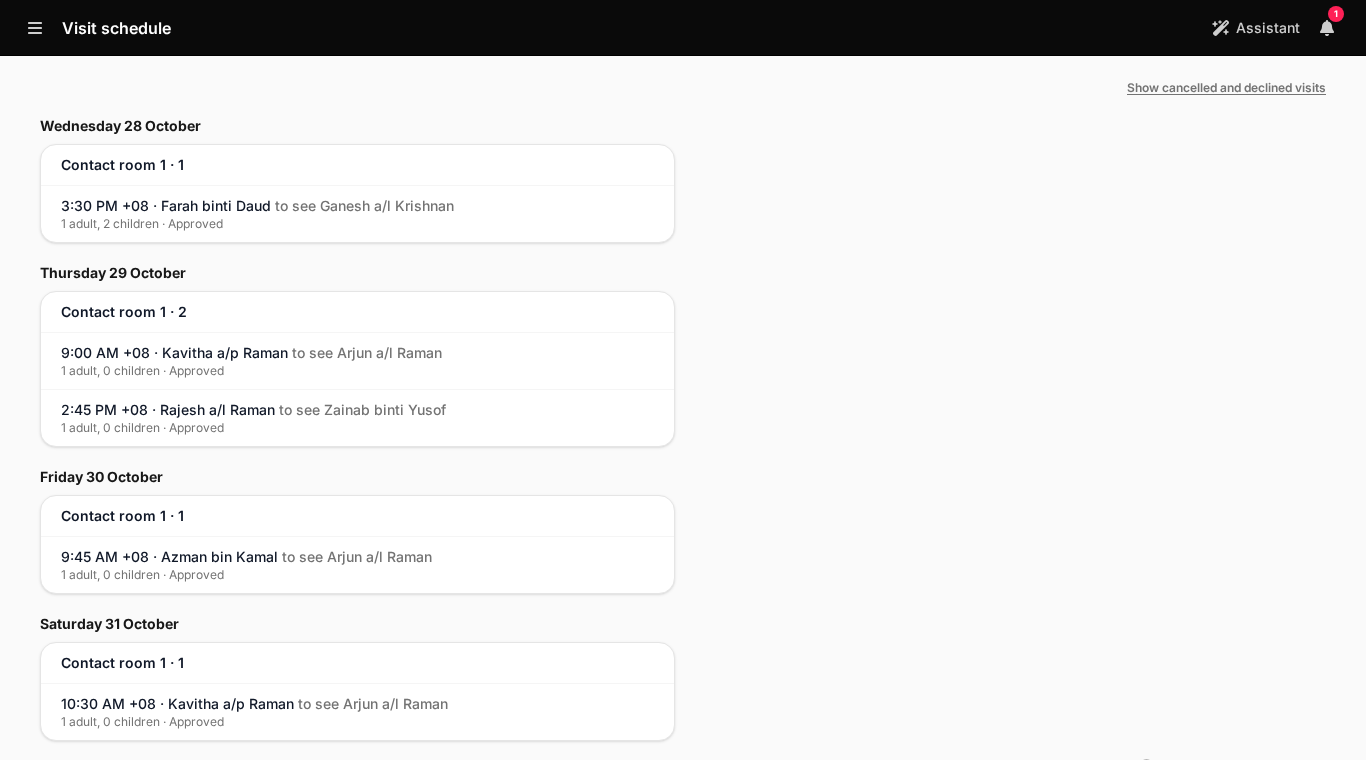
The approved visitor picks a visit type, a date and a time, and ticks the children who come. Waitlist App checks the booking against the facility's rules:
- The visit cap for the person in custody. In the demo, each person may receive four visits a month; when other visitors have used them, the page refuses the booking and says the person has used all their visits for the period.
- The party limits: the largest party, the most adults, the most children, and whether children need an adult.
- The booking window: how far ahead the visit may be booked.
The visit-booking-guard table then approves or declines the visit at once, or leaves it for staff, who decide on the Schedule screen.
7. Notices to the visitor
The visitor is told each time their request or visit changes: request received, approved, not approved, needs more information, ID needs another photo, visit confirmed, and visit cancelled. Each change is sent once, by WhatsApp (SMS in the US and Canada). The words say what changed and link back to the page. They carry no name, no ID detail, and no reason the facility has chosen not to show. They are in the language the request was made in.
8. Arrival at the front desk
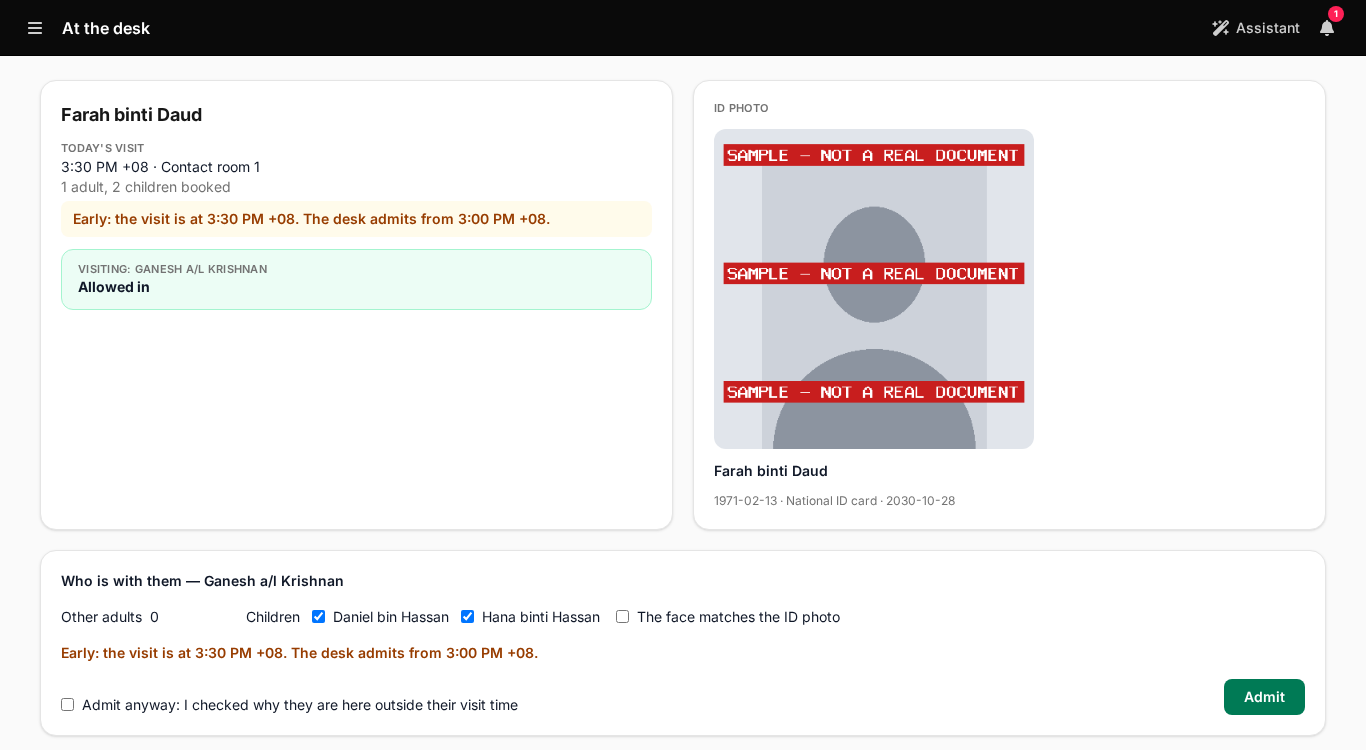
At the desk, the officer scans the pass QR on the visitor's phone, or searches today's visitors by name. The screen shows Allowed in or Not allowed in, the person in custody being visited, the visit time and who is booked.
- The officer opens the verified ID photo and compares it with the person in front of them. Opening it is logged with the officer's name.
- The children on the approved request are listed by name and ticked.
- The officer ticks that the face matches and taps Admit.
The facility sets an admit window around the visit time. Outside it, the desk says how early or late the visitor is, and the officer must tick Admit anyway before admitting. A refused scan shows its reason, for example no pass, pass suspended, visits suspended for this person, visits suspended for this unit, or too many companions, and every refused scan is logged.
9. Who is inside
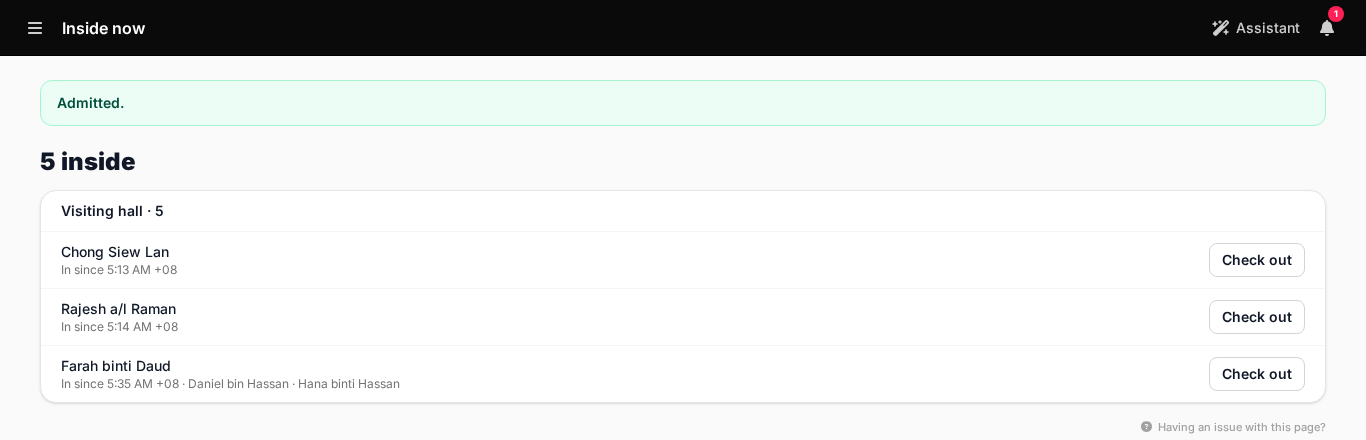
The Inside now screen lists everyone in each visiting area, with the children and other adults who came in with them, and the time they came in. Staff check people out from the same list. Anyone in longer than the facility's limit is flagged as an overstay.
10. Lockdowns and suspensions
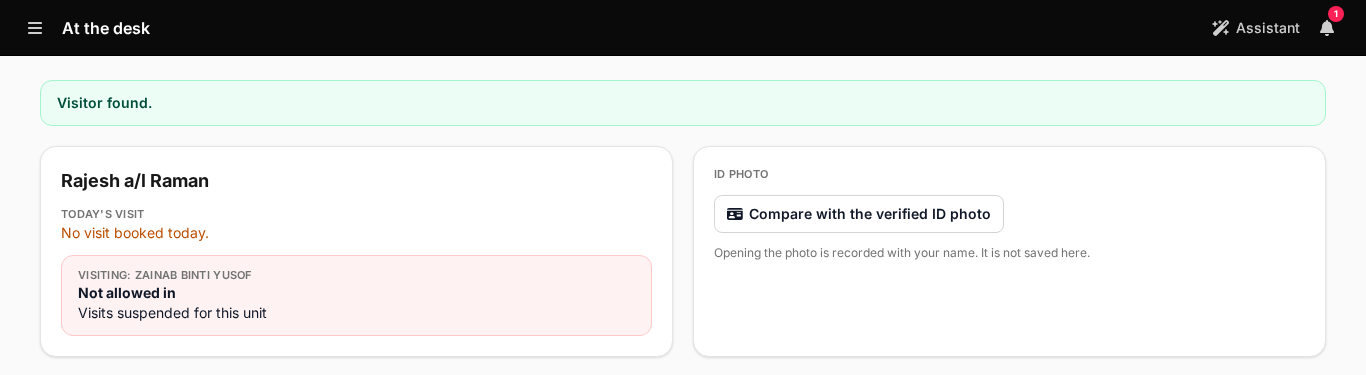
From the Residents screen, a supervisor can lock a housing unit down, or suspend one person's visiting privilege with a reason. In either case:
- every booked visit to the people affected is cancelled;
- their visitors are told on the facility's channel, and the screen lists who was told and who has no contact on file;
- every scan at the desk for those people is refused with the reason, until the lockdown is lifted or the person is reinstated.
11. End of day
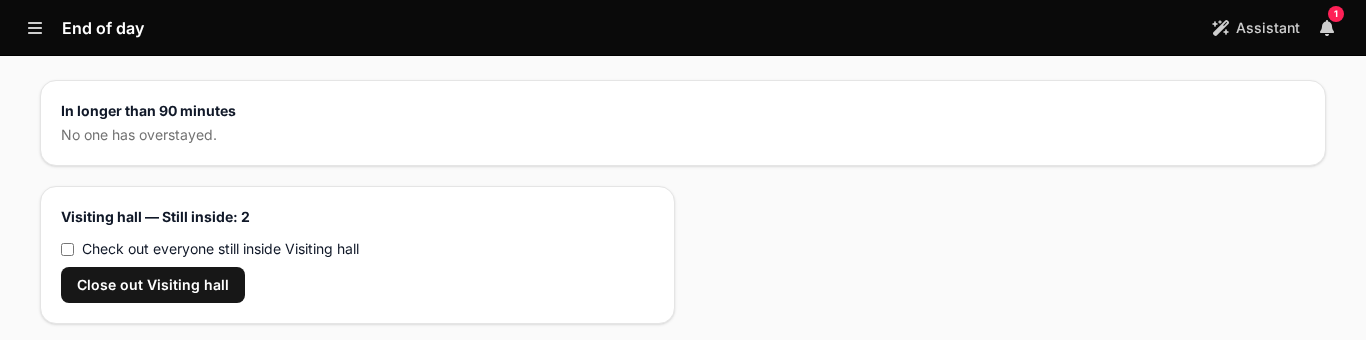
The End of day screen lists anyone in longer than the limit and who is still inside each visiting area. Close out checks everyone still inside out together, children with their adult. After it, Inside now reads "No one is inside."
What the screen shows before Close out is pressed
When the last session of the day ends, the End of day screen gives desk officers a clear, real-time summary in three columns: the visiting area name, who is currently logged as inside, and whether any of those parties have exceeded their approved visit duration. Overstays are highlighted separately so they can be handled first. The officer either confirms with the floor officer where the visitor is, or reports it to a supervisor if nobody knows where the visitor is. Children are grouped under their accompanying adult, so the officer can quickly confirm that no minor has been separated from their responsible adult.
This layout matters in a corrections context because the end of a visiting day is one of the busiest administrative periods. Multiple parties may be leaving at the same time, floor staff are counting people, and the front desk is checking people out while it tries to match the log. One combined view reduces the chance that someone is missed. Staff do not have to scroll through individual check-in records.
The Close out action and what it triggers
Pressing Close out performs a bulk check-out for everyone still listed as inside. The system records the precise timestamp for each party, closes their session, and recalculates any overstay duration for the audit trail. Because children are always linked to their adult guardian's record, the action checks out the entire group in one step. A child's record cannot stay open while the adult's record is closed.
Immediately after Close out completes, the Inside now panel updates to "No one is inside." This change is not only on the screen. The empty state tells the system that the visiting hall is empty, which is a precondition for generating the end-of-day report and locking the day's session log. Any attempt to check in a new visitor after Close out has been pressed prompts a confirmation step, so late visitors are not admitted by mistake to a closed session.
Overstay handling before you close
Ideally, Close out is pressed with no overstay flags active. In practice, the desk officer should handle any overstay entries first:
- Confirm physical departure. Check with the floor officer that the visitor has already left but was not checked out at the gate. This often happens when many people leave at once. If this is confirmed, the officer closes that record by hand before pressing Close out for the rest.
- Log the reason. If a visit really lasted longer than allowed, for example a legal visit that received a time extension, the officer can attach a note to the record before closing. This note becomes part of the audit trail and means the overstay does not appear without an explanation in later reports.
- Escalate if location is unknown. If a visitor cannot be physically accounted for, standard facility security procedures apply first. Close out is not pressed until the situation is resolved and documented.
How this connects to the rest of the session lifecycle
The end-of-day close-out is the last step of the day, and the morning's facility setup is the first. The structured check-in workflows used in government service queues depend on opening and closing each session correctly to keep records accurate. A corrections visiting system requires the same rule, and an unclosed record has much more serious consequences. An open session in a prison context could mean a visitor is incorrectly shown as still inside during a count, which is an immediate security problem.
Once Close out is confirmed and the "No one is inside" state is reached, the system is ready to generate the day's summary for the duty supervisor and to create the audit trail entries covered in the next section.
12. The audit trail
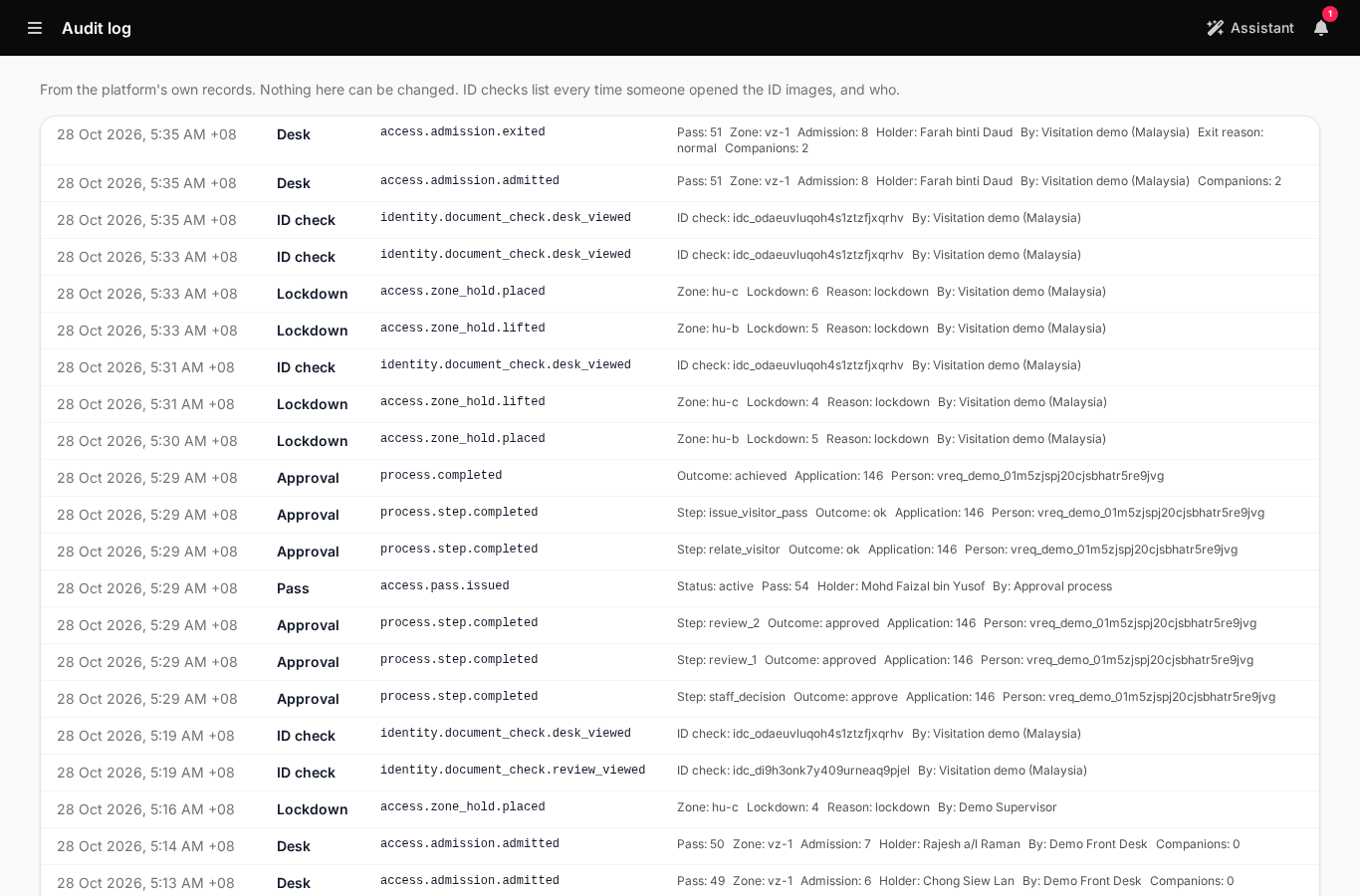
Nothing in the audit log can be changed. It shows every time someone opened an ID image and who, the verification, each signature and approval step, each pass issued, each admission and exit with the number of companions, every lockdown placed and lifted, every suspension, and every refused scan, each with the staff member who did it.
Where AI helps
AI assists; the facility's rules and its people decide. No AI output approves, refuses, admits or bans anyone. Each item below is switched on per facility, and processes data in the AI region the facility chooses.
Available on request:
- Visitor rules assistant (step 2). Visitors ask what they can bring, which ID to show and when they can visit. The answers come only from the facility's published visiting rules, and say nothing about a person in custody beyond what the facility discloses.
- Reading the ID at upload (steps 2 and 3). Reads the name, document number and expiry, asks for a retake when glare hides a detail, and flags any mismatch with what the visitor typed for the reviewer.
- Face match, with the visitor's consent (steps 3 and 8). Compares the ID photo with a photo taken at the desk. The result is a flag for staff.
- A request brief for the reviewer (step 5). A short summary: the stated relationship against past records, past visits and refusals, visits used, active holds or restrictions, and anything inconsistent. It makes no recommendation.
- Staff notes by voice (step 8). Desk officers dictate incident and visit notes, which are transcribed and summarised onto the visit record.
- Questions over the visit log (step 12). Staff ask in plain words, such as "who visited Housing unit C last week", and the answer cites the log entries.
- A pattern digest for the security lead (step 12). Daily or weekly: one visitor linked to many people in custody, visit frequency spikes, repeated refused scans, "Admit anyway" overrides per officer, and deposit patterns.
Where the data is stored
A facility's visitor data is hosted where the facility chooses, and our hosted service keeps only the references it needs to find it.
- Every real facility is hosted in its own cloud account. A real facility holds visitors' IDs, faces, dates of birth and children's details, so production is hosted in the facility's own AWS account, in Malaysia: the Malaysia region, ap-southeast-5. The identity check service is hosted there: the document images, the details read from them and the face photos stay in the country, and the desk and reviewer views are served and logged there.
- References only on our side. For a facility in its own cloud account, our hosted service holds only references: party, check and pass IDs. It can look up one ID for one stated purpose, or pass the task to the facility's own systems.
- Our hosted service hosts the demo and trials. The demo holds no real person's data.
- AI processes data only where the facility allows. Every AI call uses the facility's AI region. A cross-border setting is flagged on the facility's governance register with its transfer basis.
Malaysia's Personal Data Protection Act
The demo facility declares Malaysia as its jurisdiction and children among the people it serves, and that sets its Malaysian PDPA posture. The regime is written for counsel to confirm and is not legal advice. The parameters counsel reviews:
- Data protection officer: an appointment must be on record before any ID is stored.
- Purpose limitation: ID checks are made for one purpose, visitor approval. Desk and review views are logged reads for that purpose.
- Retention: the facility's ID image policy. Records are never deleted.
- Children's data: each child is their own record, and their date of birth is used only to say whether they are a minor.
- Cross-border transfer: the AI region and its transfer basis. In the facility's own cloud, documents stay in ap-southeast-5.
- Disclosure to visitors: opt-in, field by field.
- Access and correction: visitors see their own requests and visits only. Staff screens show names for that screen only and never store them.
Outside Malaysia
The neutral reference pack is the starting point for any other facility. It warns rather than enforces, and every disclosure is off until the facility turns it on. The facility sets its own visit types, caps, party limits, review count, retention, AI region and messaging channel, and publishes its own decision tables. Nothing in the code is specific to one country.
Getting a facility set up
Visitation is part of Waitlist App Enterprise, and it is not self-serve. We set up each facility: its account, the setup pack, the published approval process and decision tables, staff roles, the messaging channel, and for a real facility, its own cloud account in Malaysia with the identity check service in it before the first real visitor. To see the mode on the demo facility, book a demo. The prison visitation page has the steps and screens on one page, and all use cases lists what else Waitlist App manages.


